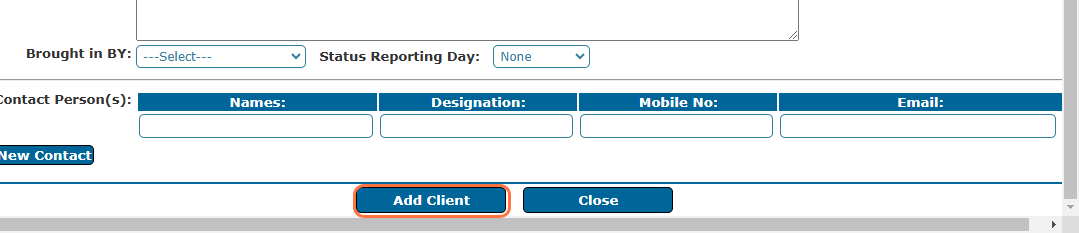
Client registration facilitates the seamless registration of new clients in our system and enhance your ability to track and manage client information effectively.
Follow the outlined steps below:
1. Start by logging into the system.
2. Once on the main dashboard, locate the "Client Management" or "Case Management" module and click on it to enter the client section.
3. Within the Client Management section click on "Client List" and on the Case Management section, select Maintenance and then choose “Client List” from the dropdown menu to view all existing clients.
4. At the top left of the Client List page, find and click the "Register Client" button. This will open a form to add a new client.

5. Complete the form with basic details about the client, including:
- Client Type (Individual, Business, etc.)
- Client’s Name
- Phone Number
- Email Address
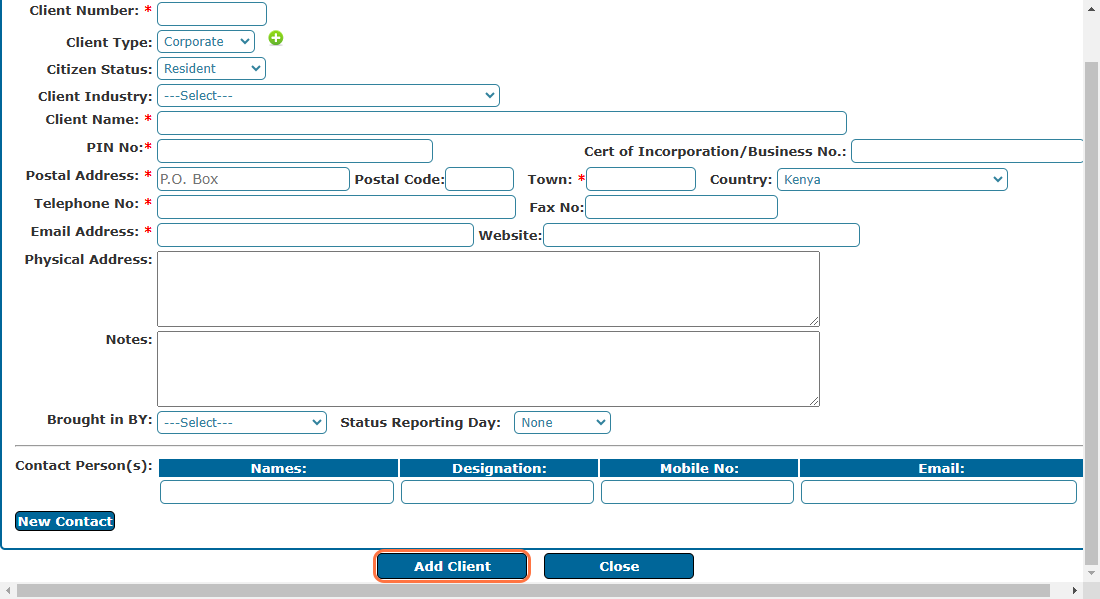
6. To capture additional contacts, enter details for the Contact Person i.e. who will handle communications.
7. If there are additional contacts, click "New Contact" to add their information.
8. Scroll to the "Add Client" section at the bottom of the form save to complete the registration.