
Steps:
- Log into the system
- Locate and click on the Office Administration module
- Click on the Suppliers section
- Select Suppliers List from the presented options
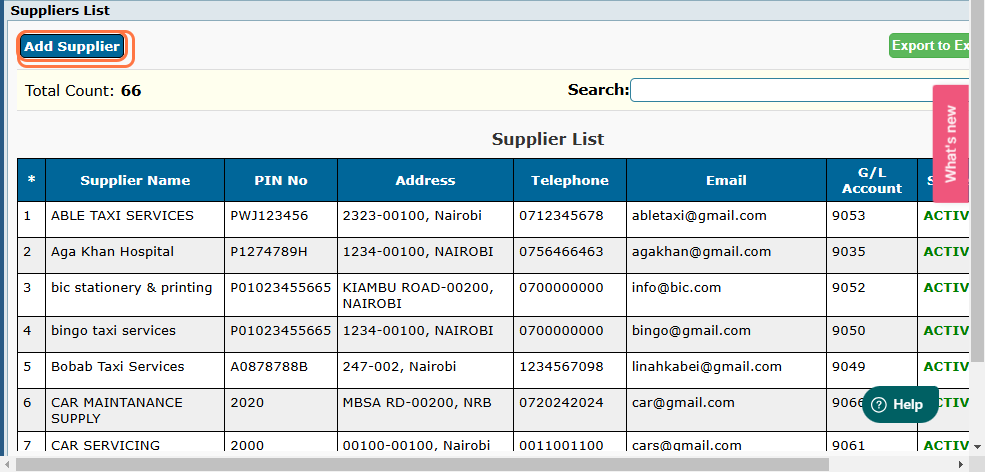
- This directs you to a list of all suppliers registered
- To add a Supplier, click on Add Supplier button located at the far left.
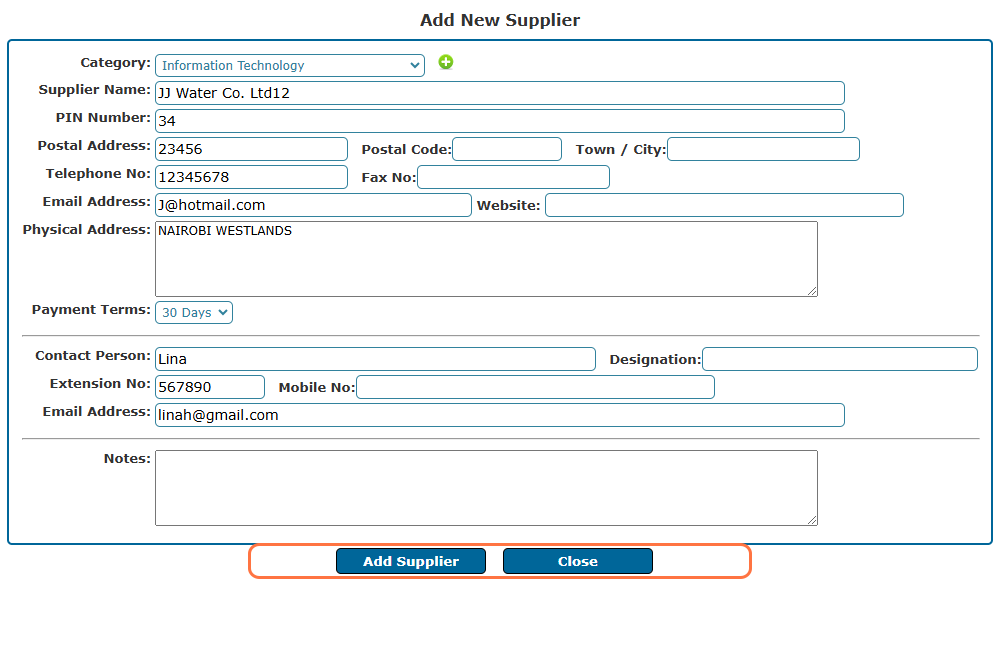
- Complete the form by filling in the details i.e. category, supplier name, pin no, postal address, email, physical address, payment terms and contact person details
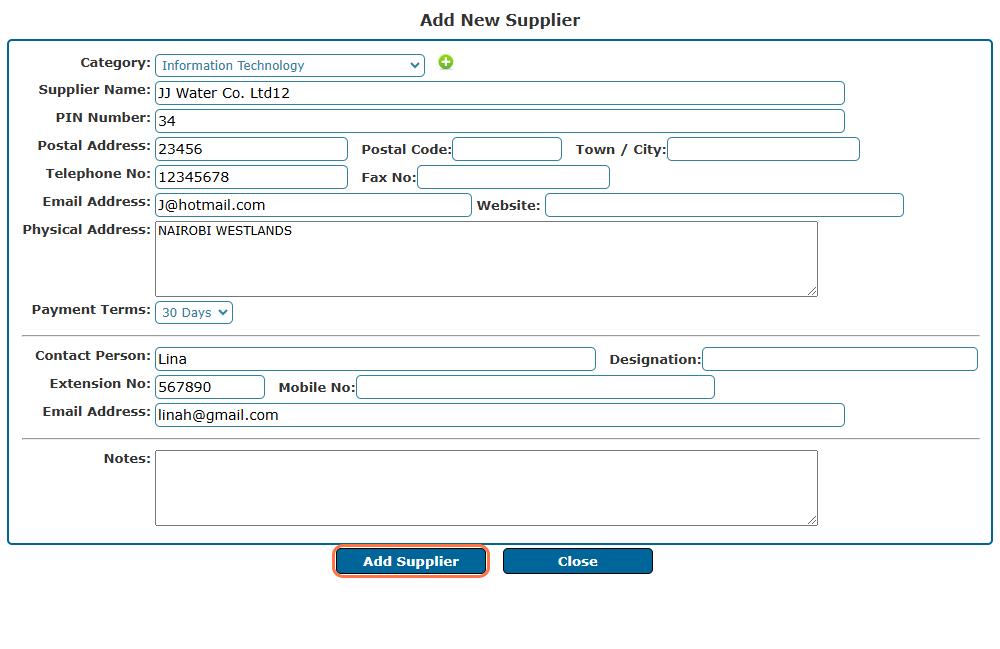
- Once done click on the Add Supplier button to successfully save the details.
Note:
The Action Menu located at the far right of each supplier provides a range of additional features to manage your suppliers effectively.
- Edit - Allows you to update the existing supplier details as needed
- View - Opens the supplier for you to review all the details. Useful for quickly checking the contents without making any changes.
- Attachments - Enables you add or view attachments related to a supplier i.e. Attach supporting documents
- Comments - Enables you to add comments or view existing comments on the supplier. Facilitate internal discussions and notes regarding the supplier.
- Reminders - Set reminders for follow-up actions related to the supplier. Keep track of important dates and actions to ensure timely follow-ups.